
This guide will show you how the Auto Swap Like Inventory feature works, where the system will automatically swap an item that has no available inventory in the warehouse for an alternate item that has the highest quantity.
1.) When inventory items are added to the bid, the system will automatically check your inventory for those items to make sure there is an available quantity for it before it moves to the job when it is created.
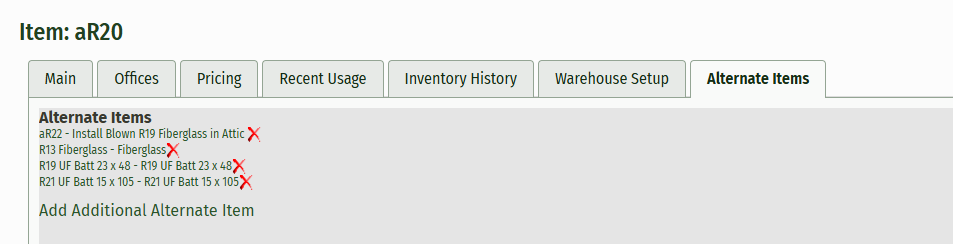
2.) If there is an item that doesn’t have available inventory in your warehouse, it will swap it wil one of the alternate items that has the most inventory available, or the highest quantity.
a.) If you have multiple warehouses that you can source from, the system will take this into account as well and will find the highest quantity in inventory for that item from all warehouses.
Alternate Items
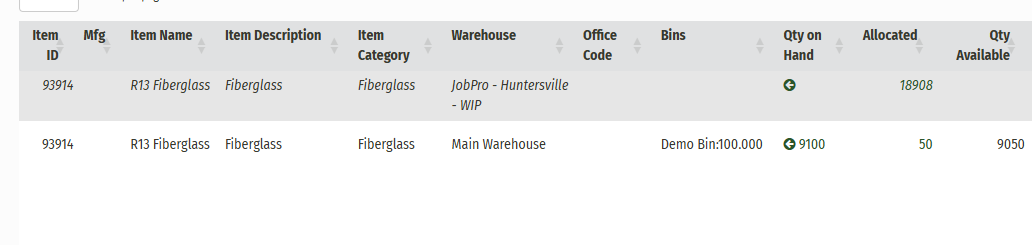
Comparison of Quantities in Inventory
If there was no available quantity for the aR20 item, the system will choose R13 Fiberglass Alternate Item (has higher quantity)

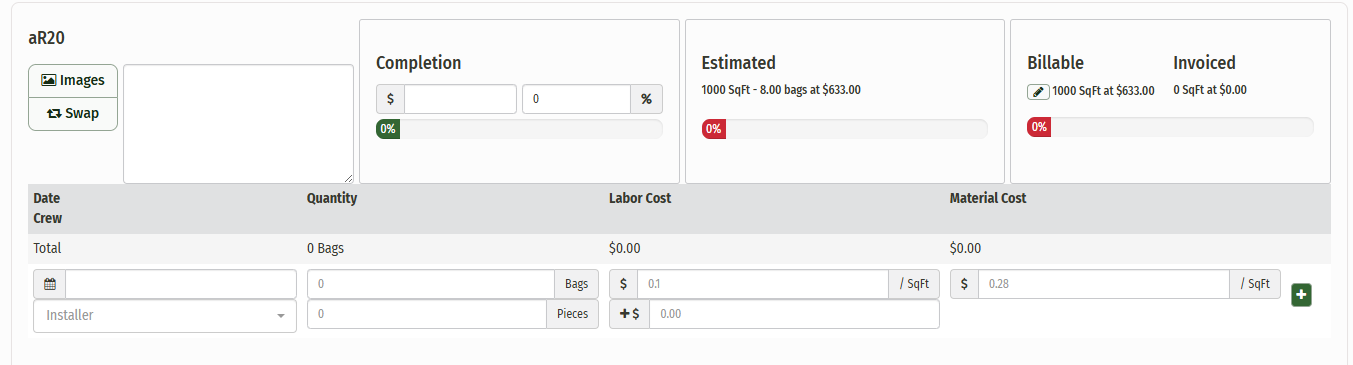
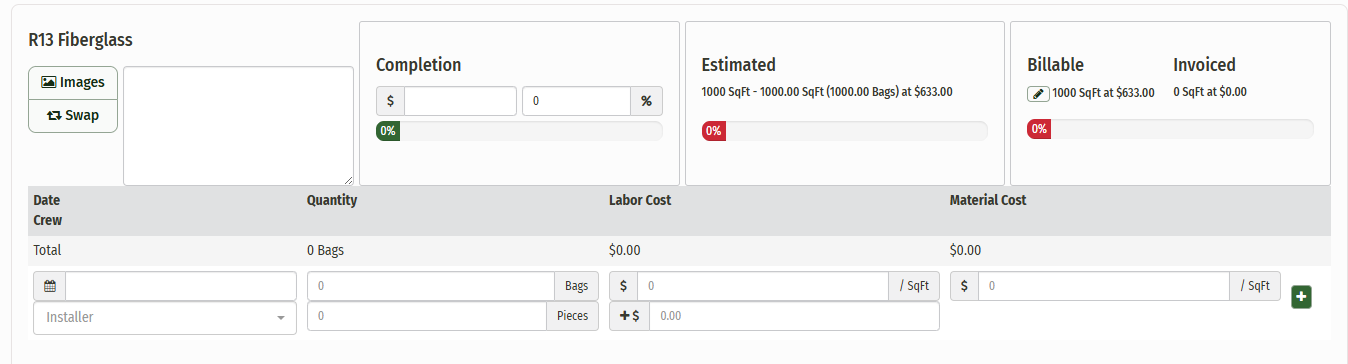
3.) The estimated and billable quantities will remain the same but the yields will go into effect if the item is was swapped with has a different yield, in which the correct yield will be applied just the same as if you were to swap it on the Sourcing Tab.
Before Auto Swap:
After Auto Swap:
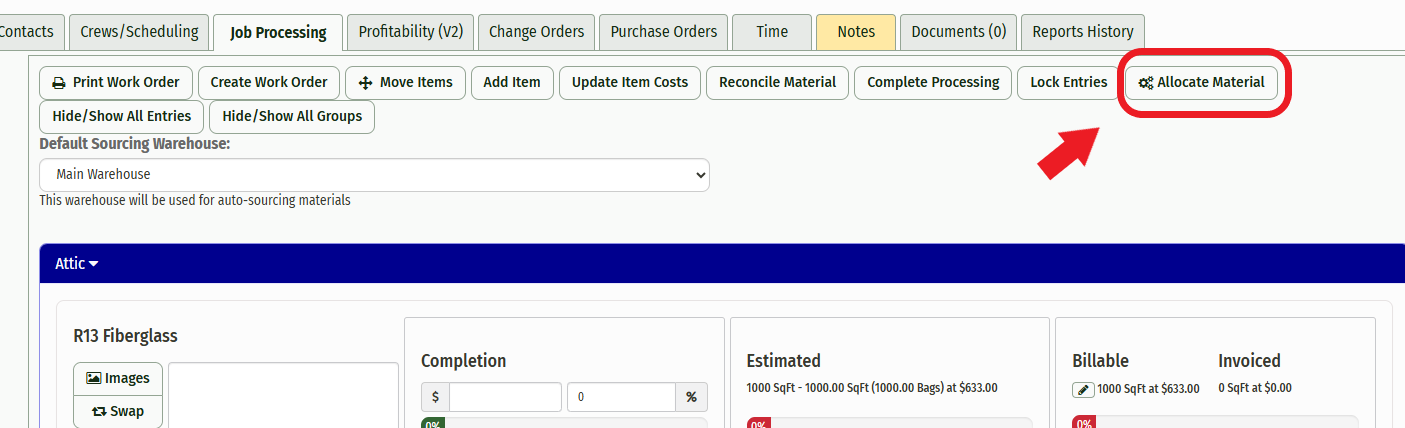
4.) From here, you can allocate the material to the job and install it.
NOTE:
Change Orders
-
Changes Orders will still function correctly when using the old Change Order process. Once you finalize the Change Order the system will check the inventory for available quantities and will swap items that need to be swapped if unavailable in your warehouse.
-
The new Change Order process will pull the swapped items to the bid worksheet and you can make changes to them as needed. Once you finalize the Change Order, it will not swap a second time.
Non-Inventory Items
-
You can also set up non-inventory items to have inventory items be set as alternates:
-
If you have a generic non-inventory fiberglass item, you can have multiple different inventory fiberglass items set as alternates for that item. In this case, the system will swap the non-inventory fiberglass item for one of the inventory fiberglass items, choosing the one with the highest inventory.
-
In cases where the non-inventory item doesn’t have any alternate items to swap with, once the item gets put on the job, it will have a red indicator underneath it that labels it as a non-inventory item. This will let you know that the item is non-inventory and will need to be swapped once you have available inventory after the job is completed.
-
If an item doesn’t have anything available to swap for it, a message will display that lists all of the items that could not be swapped.
-